Table of Contents
- Key Takeaways
- Quick Verdict: Microsoft 365 Family at a Glance
- Product Overview & Specifications
- Real-World Performance & Feature Analysis
- Setup and Daily Management
- Application Performance and Copilot AI
- The OneDrive Ecosystem: More Than Just Storage
- Security and Reliability
- Pros & Cons
- Comparison & Alternatives
- Cheaper Alternative: Google Workspace (Free Tier)
- Premium Alternative: Individual Microsoft 365 Subscriptions for Everyone
- Buying Guide / Who Should Buy
- Best For Beginners
- Best For Professionals and Students
- Not Recommended For
- Frequently Asked Questions (FAQ)
You’re managing a household where someone’s always working on a school project, another needs to edit a resume, and everyone needs to access files from different devices. The free alternatives are getting clunky, and you’re wondering if paying for Microsoft 365 Family is the solution or just another subscription drain. I’ve been using Microsoft 365 Family across my own multi-person, multi-device household for years, and I’m here to give you the real-world breakdown—not just the marketing specs.
This isn’t about whether Microsoft Office is good (it is); it’s about whether the subscription model makes financial and practical sense for your specific situation. We’ll look at what the 1TB of OneDrive storage per person actually feels like, when the AI-powered Copilot is genuinely helpful versus a gimmick, and the hidden costs of “automatic renewal” that nobody talks about.
Key Takeaways
- The per-person value is compelling for 3+ users: At around $15 per person per year if you max out the six seats, it’s significantly cheaper than individual subscriptions and includes far more storage.
- Copilot (AI) is a game-changer for productivity, but its real value is in complex tasks in Excel and Word, not just simple document creation.
- OneDrive integration is the silent MVP: Seamless file access across all devices eliminates the “which computer is that file on?” problem forever.
- The annual commitment is a double-edged sword: You get continuous updates but lose access if you stop paying, unlike a one-time purchase.
- It’s overkill for casual users: If you only need basic word processing occasionally, free web-based tools are more than sufficient.
Quick Verdict: Microsoft 365 Family at a Glance
Best for: Families with 3 or more members who regularly use productivity apps for work, school, or personal projects. Also ideal for small teams or households with a mix of PCs, Macs, and mobile devices who need reliable, synchronized cloud storage.
Not ideal for: Single users (Microsoft 365 Personal is better), casual users who only need basic document editing a few times a year, or anyone who strongly prefers owning software outright and dislikes subscriptions.
Core Strengths: Exceptional value per user when fully utilized, best-in-class app performance and reliability, seamless cross-device synchronization, and industry-leading security features with Microsoft Defender.
Core Weaknesses: Subscription model means no permanent software ownership, automatic renewal can catch users off guard, and the full feature set (especially advanced AI) has a learning curve.
Product Overview & Specifications
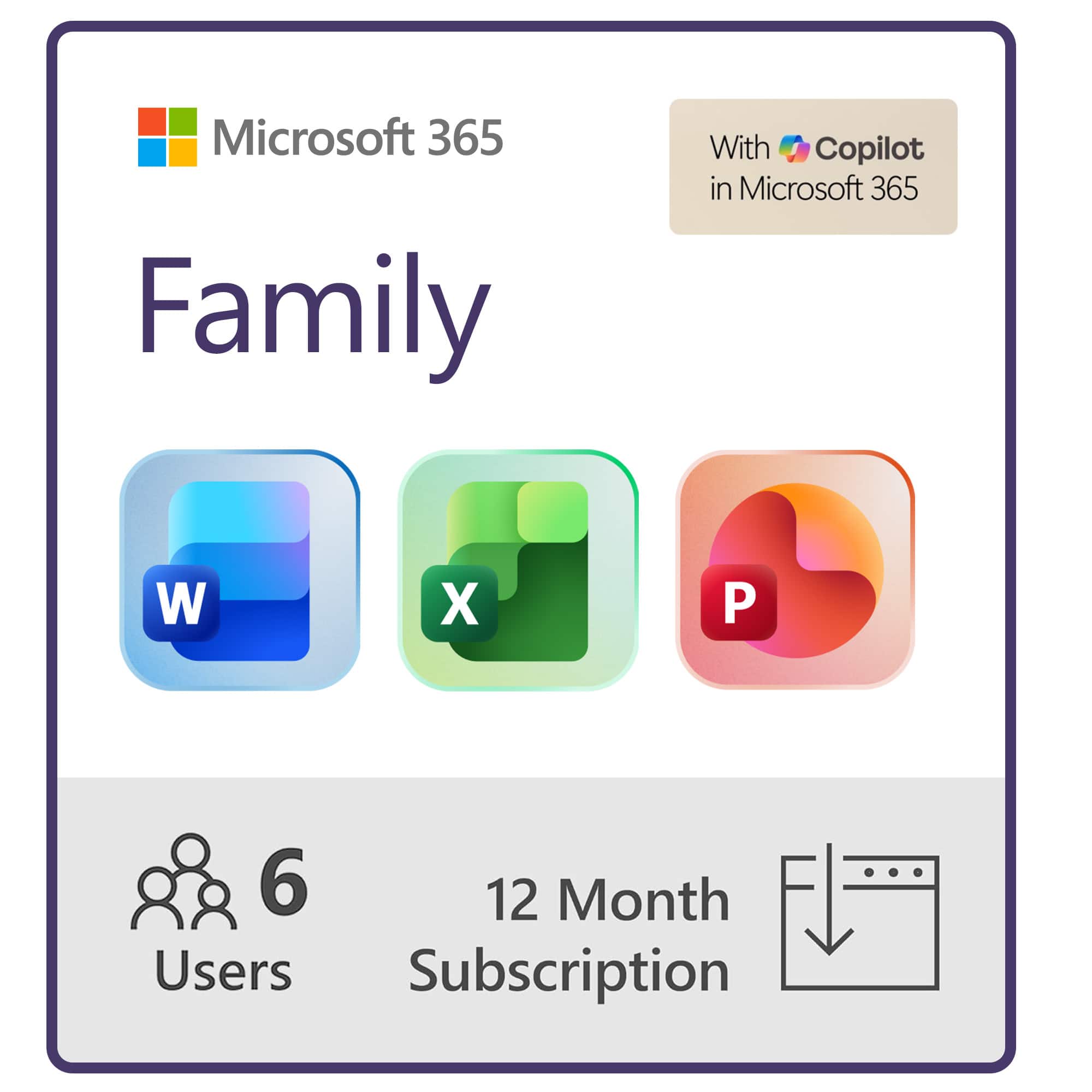
Microsoft 365 Family is a cloud-powered subscription service that provides the full desktop and mobile versions of Microsoft’s flagship productivity suite. Unlike the one-time purchase of Office 2021, this is a service that you pay for annually, and it includes continuous updates, cloud storage, and premium features. The core value proposition is centralized management for up to six separate people, each getting their own independent experience.
| Specification | Details |
|---|---|
| Price (Annual) | $99.99 (MSRP) / Often found for ~$91 (as in this listing) |
| Users Included | Up to 6 independent users |
| Devices per User | Install on up to 5 PCs/Macs, 5 tablets, and 5 phones |
| Core Applications | Word, Excel, PowerPoint, Outlook, OneNote, Publisher (PC only), Access (PC only) |
| Cloud Storage | 1 TB of OneDrive per user (6 TB total potential) |
| AI Features | Microsoft Copilot integration across apps |
| Security | Microsoft Defender, advanced phishing protection |
| Support | Microsoft technical support via chat or phone |
| Platforms | Windows, macOS, iOS, Android |
The activation process is straightforward: you purchase a subscription, receive a product key, and redeem it at Microsoft365.com/setup. From there, you can invite up to five other people via email to join your “family” group. Each person signs in with their own Microsoft account, and their apps, settings, and 1TB of storage are completely separate from yours. There’s no file sharing or visibility between accounts unless you explicitly choose to share a document.
Real-World Performance & Feature Analysis
Setup and Daily Management
Getting started is simple, but the real test is long-term management. After redeeming the code, you become the “organizer” of the subscription. In practice, this means you’re the one billed annually, and you have an admin panel to see who has accepted invites. The most common hiccup I’ve seen is when an invited member doesn’t have a Microsoft account or uses an old, forgotten one. It’s worth ensuring everyone creates or knows their login details beforehand.
Once set up, management is hands-off. The apps update automatically in the background. The key here is that you’re not managing six installations; each user manages their own installations on their devices through their Microsoft account. This decentralization is a benefit, reducing the admin burden on one person.
Application Performance and Copilot AI
The desktop apps are the full, uncompromised versions. Word and Excel launch quickly and handle complex documents and large spreadsheets without a hitch. The performance difference between these and the free web versions (or older standalone Office versions) is noticeable with heavier tasks. Trying to edit a 50-page thesis document with images and citations in Google Docs is a sluggish experience; in the desktop Word app, it’s smooth.
Copilot is where the subscription truly justifies itself beyond the one-time purchase option. It’s not just a fancy Clippy. In Excel, I’ve used it to analyze sales data and generate PivotTables and charts from simple text prompts, saving me at least an hour of manual work. In Word, it can reformat entire documents, generate summaries, and suggest improvements to tone and clarity. However, it’s not magic. The biggest learning curve is crafting effective prompts. “Make this better” gives vague results. “Summarize this document into three bullet points for an executive audience” produces genuinely useful output. For students writing papers or professionals creating reports, it’s a significant productivity booster.
The OneDrive Ecosystem: More Than Just Storage
This is arguably the most underrated feature. The 1TB of storage per person is massive—enough for hundreds of thousands of documents and photos. But the real value is the deep integration with the Office apps. When you save a file to OneDrive from Word on your laptop, it’s instantly available on the Word app on your phone. You can start a PowerPoint on your desktop, and then review it on your iPad on the couch.
I’ve found this eliminates two major pain points: version control and device dependence. There’s no more emailing files to yourself or worrying about which device has the latest draft. The auto-save feature means you almost never manually save a document again. For a family, this is perfect for collaborative projects like planning a vacation (shared Excel budget sheet) or a family newsletter (shared Word document).
Security and Reliability
Microsoft Defender, included in the subscription, provides real-time protection against phishing and malware links, especially within Outlook. It’s a set-and-forget benefit that adds a layer of security, particularly useful for less tech-savvy family members who might be more susceptible to email scams.
Reliability has been excellent in my experience. Microsoft’s cloud infrastructure means service outages are rare. The peace of mind that comes with automated backups and version history in OneDrive is a huge plus. I’ve accidentally overwritten files, only to restore a previous version in a few clicks. For important school or work documents, this feature alone can be a lifesaver.
Pros & Cons
Pros:
- Unbeatable Value for Multiple Users: Cost per person drops significantly, making it cheaper than many streaming services.
- Continuous Updates: Always have the latest features and security patches without extra cost.
- Seamless Cross-Platform Experience: Flawless synchronization across Windows, Mac, iOS, and Android.
- Generous, Integrated Storage: 1TB of OneDrive per user is deeply integrated into the workflow.
- Powerful AI Assistance: Copilot provides genuine time-saving benefits for complex tasks.
Cons:
- Subscription Model: You never own the software; stop paying and you lose access to premium features and potentially your cloud storage flexibility.
- Automatic Renewal: The annual charge can be a surprise if you forget to cancel.
- Potential for Underutilization: If you can’t fill most of the six seats, the value proposition weakens.
- Feature Overload: The vast array of features can be overwhelming for users who only need basic functionality.
Comparison & Alternatives
To understand if Microsoft 365 Family is right for you, it’s essential to compare it to the alternatives.
Cheaper Alternative: Google Workspace (Free Tier)
Value Difference: Google Docs, Sheets, and Slides are completely free for personal use with a Google account. They are collaborative, web-based, and “good enough” for most basic tasks.
When to Choose Google Workspace: If your family’s needs are minimal—writing occasional letters, simple spreadsheets, and basic presentations—and you’re comfortable working entirely in a web browser. It’s also superior for real-time, multi-person collaboration on a single document. Choose this if your primary concern is cost and your needs are basic.
When to Stick with Microsoft 365 Family: If you need advanced formatting, data analysis in Excel, offline access to full-featured apps, or are dealing with documents that require perfect compatibility with academic or business standards (e.g., APA formatting, complex Excel macros).
Premium Alternative: Individual Microsoft 365 Subscriptions for Everyone
Value Difference: If each person in your household bought their own Microsoft 365 Personal subscription (usually $69.99/year), the total cost for six people would be over $400—more than four times the cost of the Family plan.
When to Choose Individual Subscriptions: Almost never for a family unit. The only scenario is if you need absolute privacy and separation, with no central billing. For example, adult roommates who are not a family unit might prefer this.
When to Stick with Microsoft 365 Family: In 99% of family or shared situations. The cost savings are immense, and the management is simple. This is the core value of the Family plan: bulk discount for a trusted product.
Buying Guide / Who Should Buy
Best For Beginners
If you’re not a power user, Microsoft 365 Family is still a great choice if you have multiple people to cover. The apps are intuitive, and the automatic updates mean you don’t have to worry about installing new versions. The simplicity of having all your files available everywhere is a major benefit for those who may not be technically inclined.
Best For Professionals and Students
This is the target audience. If your work or studies depend on producing professional documents, analyzing data, or creating compelling presentations, the full power of the desktop apps and Copilot AI is worth the subscription cost. The ability to work offline and sync later is crucial for travel or areas with spotty internet.
Not Recommended For
You should NOT buy Microsoft 365 Family if:
- You are a single user. The Personal plan is more cost-effective.
- You only need productivity software a few times a year. The free web-based options are sufficient.
- You have a strong aversion to subscriptions. Consider the one-time purchase of Office 2021 Home & Student, but know you’ll miss out on cloud storage, AI, and future updates.
- Your household uses primarily Chromebooks or relies heavily on the Google ecosystem. The integration won’t be as smooth.
Frequently Asked Questions (FAQ)
Q: What happens if I cancel my subscription?
A: This is critical to understand. If you cancel, your subscription remains active until the end of the paid period. After that, the Office apps enter a “read-only” mode. You can view and print documents, but you cannot edit or create new ones. Furthermore, you exceed your OneDrive storage limit (drops to 5GB free), you won’t be able to upload new files until you free up space or resubscribe.
Q: Can I share with people who don’t live with me?
A> Yes. The “Family” designation is flexible. You can invite anyone with an email address, anywhere in the world. They do not need to be related or live at the same address. They simply need to accept the invite sent to their email.
Q: Is the Microsoft 365 Family subscription worth it in 2026?
A> For households with 3 or more active users, absolutely yes. The combination of powerful, always-updated apps, massive cloud storage, and increasingly useful AI features provides tangible value that outweighs the annual cost. For one or two users, you need to critically assess how much you’ll use the advanced features versus sticking with free alternatives.
Q: How does this compare to the one-time purchase of Office 2021?
A> Office 2021 is a static product. You pay once and own that version forever, but you get no feature updates and no cloud storage. Microsoft 365 is a service. You pay annually and get continuous updates, 1TB storage per user, and AI features. The break-even point is about 3-4 years. If you prefer the latest features and cloud convenience, choose 365. If you want to pay once and be done, choose Office 2021.
Q: Are there any hidden costs?
A> The only potential hidden cost is the automatic renewal at the full standard price ($129.99) if you buy from a third party at a discount. Always check your Microsoft account settings to manage renewal preferences. The subscription itself includes all apps, updates, and support.